GCC TRAINING VIDEOS FOR ALL MACHINES (CLICK HERE)
GCC HELPDESK KNOWLEDGE BASE (CLICK HERE)
Video #1: Image OutPut Direction - Advance Tab (Click Here)
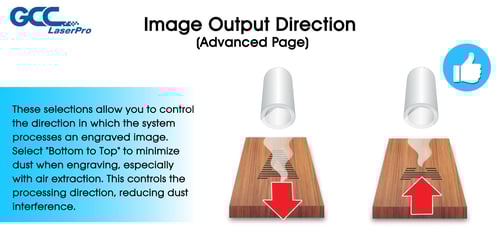
Introduction to the Image Output Direction Function, specifically how it effectively prevents dust from covering image details during the engraving process.
Video #2: Unidirectional Engraving Setting - Options Tab (Click Here)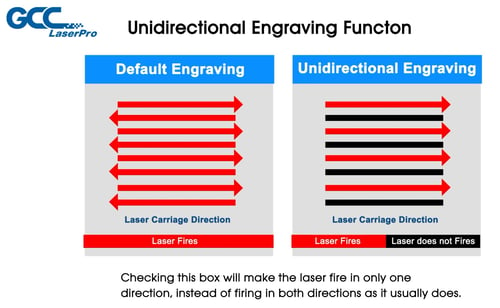
For certain applications, you can enable the Unidirectional Engraving function to make the laser fire in only one direction instead of alternating in both directions, as it normally does. This may affect throughput, as the laser will complete only a single pass per movement cycle.
Video #3: Mirror Setting - Options Tab (Click Here)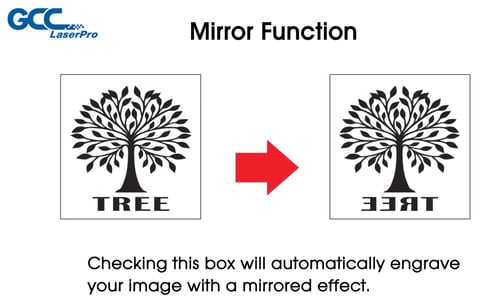
The Mirror function is primarily used for stamp engraving, which flips the image horizontally. This ensures that the engraved stamp will imprint the design correctly.
Video #4: Invert Setting - Options Tab (Click Here)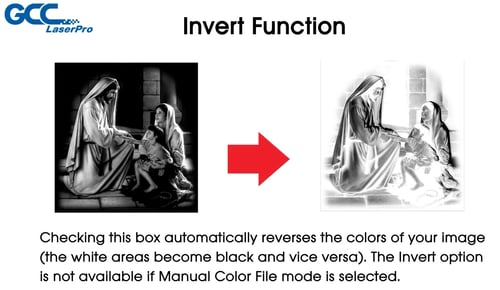
The Invert function converts the original design into a negative image effect, where the background is engraved away, leaving the design raised to create a relief effect.
Video #5: Vector Function - Advanced Tab (Click Here)
Normal - All Raster - Inside Out Cutting - Cutting Path Optimization - Decal Cutting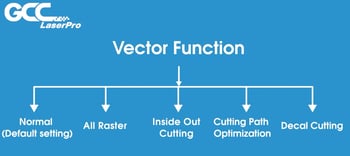
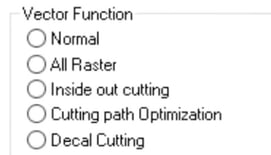
Vector processing is a common method in laser equipment. You can draw the lines or cut any shape with vector processing. GCC LaserPro print driver provides many functions for vector objects to help you deal with the vector job more effectively.
Video #6: PPI Pulses Per Inch - Pen Tab (Click Here)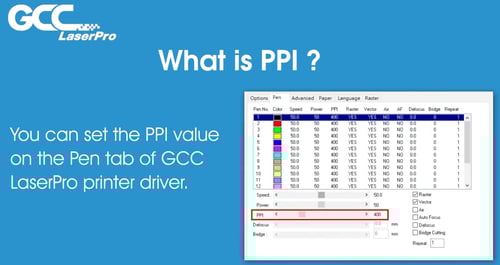
PPI stands for "Pulse Per Inch",It allows users to set the frequency of the laser firing for every inch.
Video #7: Disable Skip White - Advanced Tab (Click Here)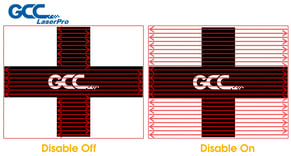
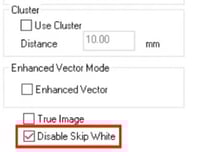
For laser engravers, all white data/area will be skipped during laser engraving to provide the best throughput. You can disable it on the print driver for specific applications or needs.
Video #8: Smart Act - Options Tab (Click Here)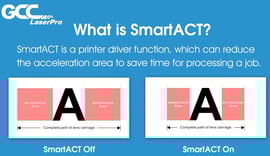
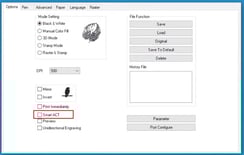
SmartACT is a print driver function, which can reduce the acceleration area to save time to process a job.
Video #9: Bridge Cutting - Pen Tab (Click Here)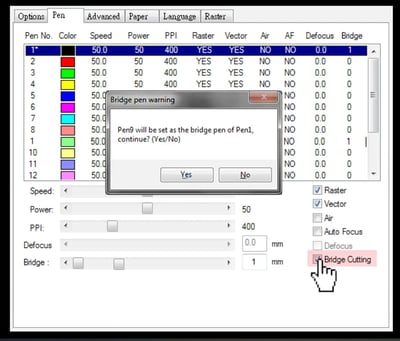
Generally, when using a laser engraver to make boxes, creases generally are made by using the kiss-cutting method. However, kiss cutting is likely to damage paper; in order to produce a better effect of creases, we recommend the Bridge Cutting function which can create dashed lines with ease. For more information, please visit www.gccworld.com.
Video #10: SmartCenter - Advanced Tab (Click Here)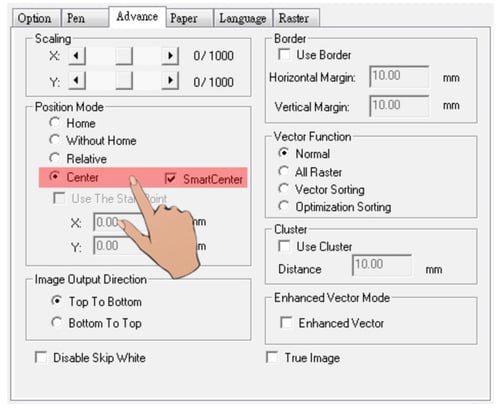
SmartCENTER™ (Patented) for laser engraving on the GCC LaserPro laser engraver: The super user-friendly function helps end users to easily and automatically locate the center point of objects of any shape, vastly eliminating tedious setup time. (CLICK HERE FOR GCC WEBSITE INFO)
GCC TRAINING VIDEOS FOR ALL MACHINES
BELOW INFORMATION IS FOUND IN THE USERS MANUAL - No Video Available Yet
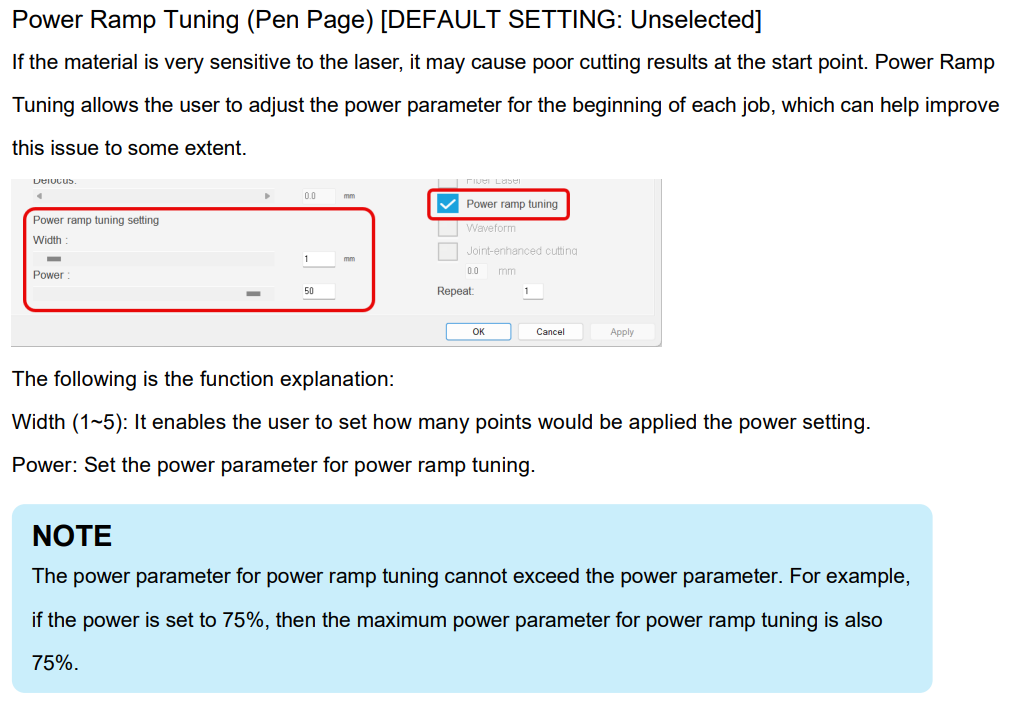
2. Enhanced Vector: 3- Precise Cutting: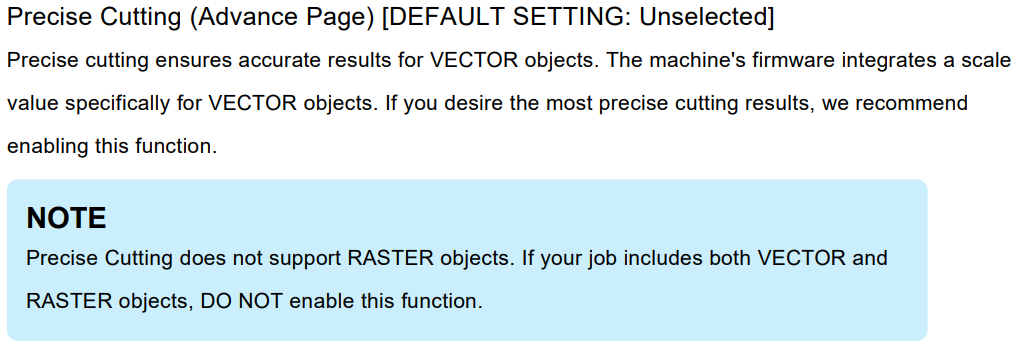
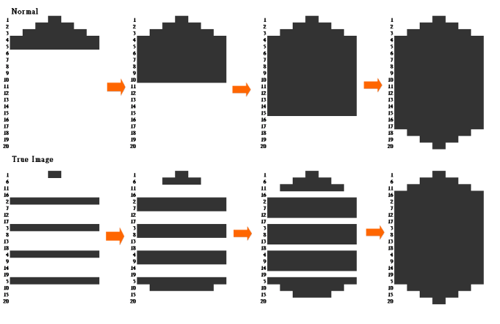
4- True Image - Advanced Tab: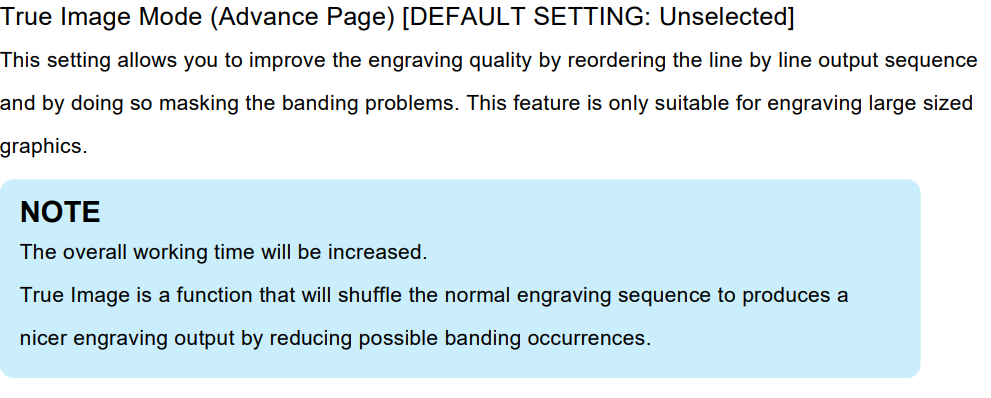
5- Cluster - Advanced Tab